Income Tracker Planner – KDP Interior: Avoiding Common Pitfalls for a Professional Finish
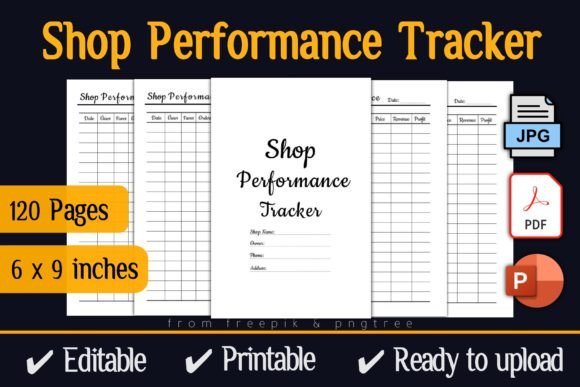
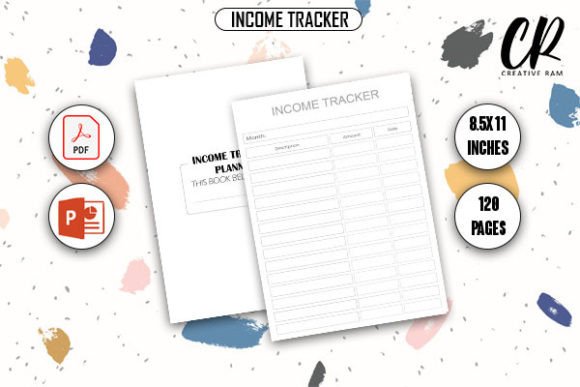
An Income Tracker Planner is more than just a collection of tables. For your customers—whether they are freelancers, side hustlers, small business owners, or entrepreneurs—it is a tool for clarity, control, and better financial decisions. The Income Tracker Planner - KDP Interior offers a complete package: 120 pages, an 8.5″ x 11″ trim size with bleed, and both PDF and PPTX source files. It is designed to help you publish quickly and professionally on Amazon KDP.
However, having a ready-made interior does not guarantee a smooth publishing experience. Many creators stumble over simple details that lead to Amazon rejections, poor print quality, or disappointed customers. Whether you are publishing your first low-content book or expanding your catalog, understanding these common mistakes will save you time, money, and frustration. This guide walks through the frequent missteps and shows you how to build a polished, functional product.
Mistake One: Misunderstanding the “With Bleed” Specification
The interior specification clearly states “Bleed With Bleed.” This is not a suggestion—it is a technical requirement for the design. Bleed means that the background colors and elements extend slightly beyond the final trim size of 8.5″ x 11″. When the book is printed, it gets trimmed down to exactly 8.5″ x 11″, and the bleed ensures there are no white edges along the margins.
A frequent mistake is uploading this interior file while selecting “No Bleed” in the KDP setup. Amazon’s system will either reject the file outright or attempt to crop it, often cutting off important headers or leaving uneven borders. Another error is resizing or scaling the PDF to remove the bleed marks manually. This disrupts the entire layout.
What to do instead: When you set up your title on KDP, navigate to the “Interior” section and explicitly choose “Bleed.” Leave the provided PDF exactly as it is. The file is already optimized for a 8.5″ x 11″ trim with bleed. Matching your setup to the file’s design preserves the intended look and prevents rejection.
Mistake Two: Overlooking the “Belongs To” Page
The “Belongs To” page might seem like a minor detail, but skipping it or leaving it generic reduces the perceived value of your planner. A book that feels impersonal is less likely to receive positive reviews or repeat purchases. Your customers want to feel that the product was designed with them in mind.
Using the included PPTX source file, you can easily customize this page. Add a short welcome message, a prompt like “Start your financial journey here,” or a space for the user to write their name and date. This small touch takes two minutes but significantly improves the user experience. It transforms a generic template into a thoughtful, branded product.
Mistake Three: Ignoring the PPTX Source File
Many beginners only look at the PDF and assume they are stuck with the exact design. This is a missed opportunity. The inclusion of a PPTX file is one of the most valuable features of this interior. It gives you the flexibility to tailor the planner to your specific audience without needing expensive design software.
For example, a freelancer might need sections for “Client Projects,” “Platform Fees,” and “Invoiced Amounts.” A small business owner might prefer “Product Sales,” “Operating Costs,” and “Quarterly Totals.” The PPTX file allows you to open the layout in PowerPoint or Google Slides, adjust category labels, tweak colors, or even add or remove rows. You can then export a fresh, high-quality PDF ready for upload.
How to use the PPTX effectively: Open the file, make your edits, and when exporting, choose “High Fidelity” or “Standard” publishing quality. Do not compress the export for web use. This ensures your customized interior maintains the print-ready quality required for KDP.
Mistake Four: Mismanaging the 120-Page Structure
120 pages of income tracking is a substantial offering. A common error is padding the interior with duplicate or irrelevant pages just to fill space, or conversely, not structuring the content logically. Both approaches lead to a poor user experience. Customers can tell when pages are filler, and they will leave negative reviews.
Instead, plan a clear structure. You can divide the 120 pages into monthly spreads, quarterly reviews, and an annual summary. For instance, allocate 10 pages per month: an income log, an expense breakdown, a notes section, and a monthly reflection. That covers 12 months with space to spare for an introduction page, instructions, and a final recap.
Think about the user’s workflow. They will appreciate consistent layouts that are easy to fill out. Group related sections together so they do not have to flip back and forth. A thoughtful structure adds real, lasting value and encourages repeat usage.
Mistake Five: Sacrificing Print Quality During Editing
The specification promises a “High-Quality Print Ready PDF.” However, after editing the PPTX, some creators accidentally export a low-resolution version or change the color space to RGB. This results in blurry lines, faded text, or colors that look different on screen versus print. Amazon’s printers expect CMYK or high-quality RGB, embedded fonts, and proper resolution.
To maintain quality, always export using the “Print” or “High Quality” preset in PowerPoint. Ensure all fonts are embedded in the file. If you are using Google Slides, download the file as a PDF and check the resolution before uploading. A small export mistake can ruin the entire interior, leading to costly reprints or negative feedback.
A simple check: Open your final PDF and zoom in to 200%. If the text or lines appear pixelated or jagged, the resolution is too low. Re-export with higher settings before listing.
Mistake Six: Bypassing the KDP Previewer
This is the step that catches most publishers. You design a perfect interior, upload it to KDP, and assume everything looks fine. But without checking the online previewer, you risk missing critical issues like text disappearing into the gutter margin, headers getting cut off, or incorrect page sizes. These problems only become obvious once the book is printed or when a customer complains.
The KDP Previewer tool allows you to see exactly how your interior will look in the printed book. For an 8.5″ x 11″ book with bleed, pay close attention to the gutter margin—the inner edge near the spine. Ensure that no important content is hidden. While the provided interior is built correctly, any custom edits you made might shift elements. Always preview before you hit publish.
If you notice an issue, go back to your PPTX file, adjust the margins or positioning, and re-export the PDF. This quick review saves you from ordering expensive proof copies that need revisions.
Practical Advice for a Smooth Launch
Getting the most out of your Income Tracker Planner - KDP Interior comes down to preparation. Start by reading the file specifications carefully. Understand what “With Bleed” means and verify your KDP settings match. Take full advantage of the PPTX source file to customize the planner for your target audience, whether they are freelancers, entrepreneurs, or small business owners.
Plan your page layout so the 120 pages flow naturally. Avoid filler. Focus on usability and consistency. When you export your final file, prioritize print quality over file size. And never skip the KDP Previewer—it is your last line of defense against formatting mistakes.
By avoiding these common pitfalls, you move from simply uploading a file to publishing a well-crafted, professional book that resonates with buyers. Your attention to detail will show in the reviews, the sales, and the satisfaction of your customers. Take the extra time to get it right, and your Income Tracker Planner will stand out in a crowded marketplace.